本文最后更新于79 天前,其中的信息可能已经过时,如有错误欢迎评论指出或发送邮件到
baicola@126.com
一、适用场景
| 主机名 | IP地址 | 说明 |
| nginx | 192.168.75.101/24 | 反向代理服务 |
| web1 | 192.168.75.102/24 | 部署httpd服务 |
| web2 | 192.168.75.103/24 | 部署httpd服务 |
二、实操
1.部署后端web服务器
- 部署后端web1服务器
#改名
hostnamectl set-hostname web1
bash
#部署httpd服务
yum -y install httpd
#创建测试页面
echo “web1” > /var/www/html/index.html
systemctl start httpd
# 关闭防火墙和selinux
systemctl stop firewalld
setenforce 0 - 部署后端web2服务器
#改名
hostnamectl set-hostname web2
bash
#安装httpd服务
yum -y install httpd
#创建测试页面
echo “web2” > /var/www/html/index.html
#重启服务
systemctl start httpd
# 关闭防火墙和selinux
systemctl stop firewalld
setenforce 0
2.部署和配置nginx服务
- 安装nginx【这里为了方便就使用yum安装了】
#安装
yum -y install nginx
#修改配置文件
vim /etc/nginx/nginx.conf # 这里删除了原本测试的server 【会导致无法访问nginx端的测试server】
#配置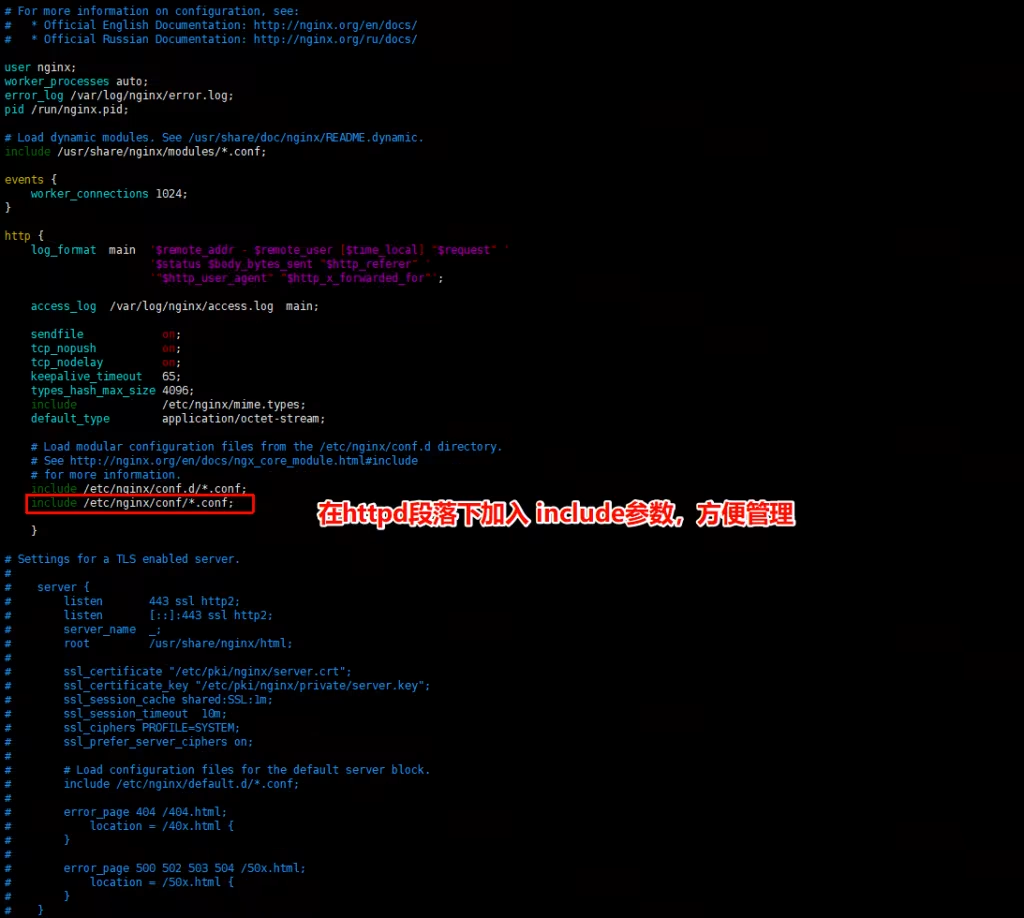
#无法访问nginx段server
- 创建对应目录写入配置
#创建conf目录
mkdir /etc/nginx/conf
#编辑配置文件
vim /etc/nginx/conf/nginx_fanxian.conf
——#使用upstream定义后端服务器集群,集群名称任意(如webserver)#使用server定义集群中的具体服务器和端口
upstream webceshi {
server 192.168.75.102:80;
server 192.168.75.103:80 ;
}
server {
listen 80;
server_name localhost;
location / {
#通过proxy_pass将用户的请求转发给webserver集群
proxy_pass http://webceshi;
}
}
——
#检测并重启nginx
[root@nginx ~]# nginx -t
nginx: the configuration file /etc/nginx/nginx.conf syntax is ok
nginx: configuration file /etc/nginx/nginx.conf test is successful
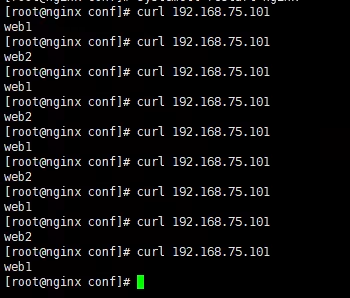
[root@nginx ~]# systemctl restart nginx - 访问测试